


Grade-based redirects
FlexiQuiz LMS offers grade-based redirects, allowing you to automatically direct learners to their next activity based on their performance in the current quiz.
This makes it easy to create personalized learning paths that adapt to each learner’s knowledge and results. Once a learner completes a quiz, FlexiQuiz can automatically send them to the most appropriate next activity based on their grade.
For example, learners who score below 30% could follow a beginner pathway, while those who score above 80% could move straight to a fast-track pathway.
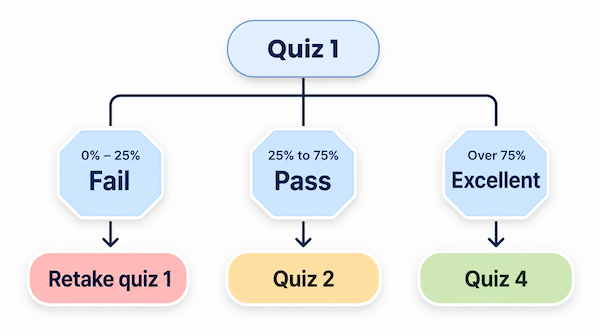
Explore this guide to learn how to set up grade-based redirects.
How to set grade-based redirects
- Begin by preparing your learning content, such as quizzes or training modules, and decide the order in which you want people to take them.
- Now go to the first quiz in your learning path.
- Select the Configure tab and choose Grading from the left-hand menu. From here you can customize the grading for the quiz.
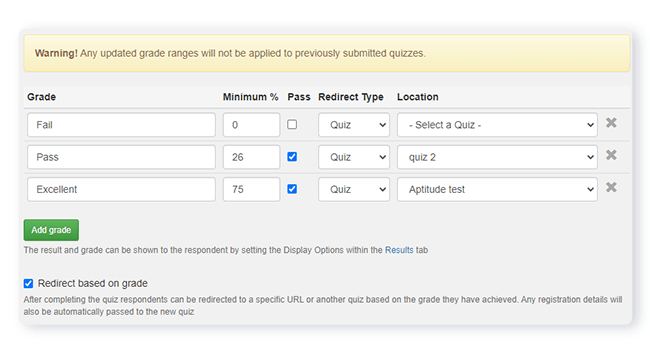
- Next, scroll down the page and tick Redirect based on grade. The Grades table will now include Redirect Type and Location.
- Go to the grading table and update the relevant fields in each column. This is a summary of each column's meaning.
- Grade: Enter custom text to describe the grade.
- Minimum: The minimum % of points that learners need to achieve the grade.
- Pass: Tick this box if the grade qualifies as a pass.
- Redirect type: Choose to direct learners to a FlexiQuiz quiz or a URL.
- Location: To direct learners to a FlexiQuiz, choose the quiz from the list of options shown in the drop-down menu. To direct learners to a URL, enter the website address.
- To customize the navigation button on the results screen, go to the Theme screen and select the Messages tab. Then scroll down to Next, delete the existing text and add your own in any language.
- You are now ready to publish and share the first quiz in your learning path.
- Test your learning path to check it works how you expect.

With FlexiQuiz, you can create a learning path long or short by adding redirects to multiple quizzes.
Frequently asked questions
Can I remove the results page, as I do not want to show people their scores between quizzes?
Yes, you can choose not to show a results page. Learners will move to their next activity when they click Submit on the quiz.
To remove the results page between activities:
- Go to the Results page on each quiz.
- Untick the box Show results page.
There will now be a seamless experience across activities. This works well if there is no scoring on the first activity, such as asking learners what difficulty, language, or subject they want to do next.
Try this short World knowledge quiz and choose the language you would like to take it in. FlexiQuiz grade-based redirects direct you to the correct language version based on your selection.
How do learners access the quizzes in the learning path?
There are several options for how and when learners will access the quizzes in the learning path, depending on your requirements.
Option 1: Access quizzes anytime.
Respondent portals are the best way to give learners access to quizzes they can take at any time. Each quiz or learning activity will automatically appear in their portal once they meet the relevant access criteria. They can log out of their Respondent portal and return at any time to view the available quizzes.
How to set up a grade-based learning path with Respondent portals:
- Start by creating your quizzes or learning activities.
- Then set up your grade-based redirects.
- Assign the first quiz to the Respondent portal.
You do not need to assign any other quizzes that are part of the learning path to the Respondent portal. The quiz will automatically appear on the Respondent portal when the learner meets the requirements for your learning path and it is open.
For example, learners may take the first quiz multiple times until they pass. The next quiz will only appear on the Respondent portal after the learner passes the first test. If you have multiple tests or activities in the journey they only appear on the Respondent portal when the learner meets the requirements.
Option 2: Complete the learning path at one time.
A quiz link or QR code is a good option for learners to complete the learning path in a single session.
You need to share the first quiz link with learners, and then they will be automatically directed to the next activity when they click submit or from their results screen. As the system automatically directs learners, you do not need to share multiple URLs.
If you add a registration page at the start of the first quiz, the registration information will pass to all future quizzes in the learning path.
Relevant help guides
How to allow retakes for a fail grade only
Sending custom email notifications
How to set up a sequential learning path
Blog: How to create a training course
Back


