


Make a quiz and share it with a QR code
With FlexiQuiz, you can easily create a custom quiz and let learners access it by scanning a QR code.
You can download and share the QR code in the classroom, on printed materials, or on your website so learners can simply scan it with their smartphones or tablets and start the test.
To secure access, you can either add a registration page, add access codes, or have learners log in to their Respondent portal.
This guide shows you the various ways you can share your quiz with a QR code.
Downloading a QR code with a quiz link
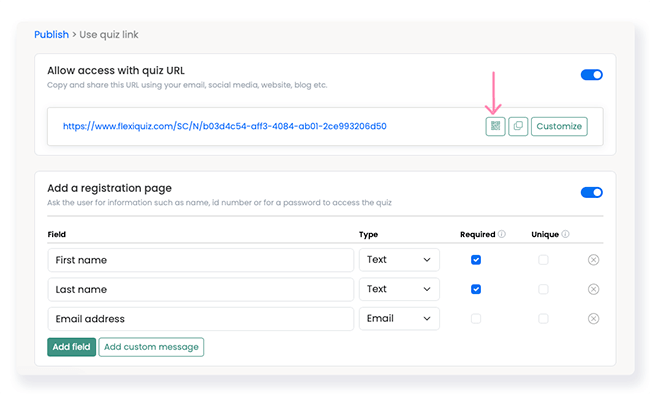
By sharing your test via the quiz link option, anyone with the QR code can access it. You can add a registration page to track who accesses your quiz content.
- To start, log in to your FlexiQuiz account and make a new quiz or open an existing one.
- Next, go to the Publish screen.
- You can click Publish quiz to open your test immediately, or select the automatic schedule to open it at a set time.
- Then click on the Quiz link box to access the link and customize it.
- To view the quiz link, click the toggle Allow access with quiz URL.
- To add a registration page to the start of your quiz, click on the Add a registration page toggle and customize the fields.
- Now click the QR code icon to download it as a JPEG.
- Then, share the QR code with your learners.
Learners can now access your quiz using a QR code scanner on a smartphone or tablet.
The learner experience
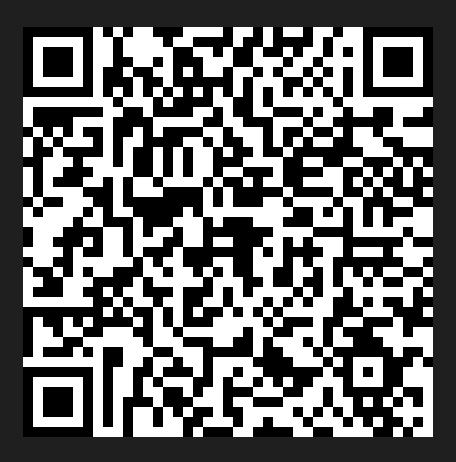
To show you how this works for learners, we have created a quiz that you can access using the QR code below.
You may need a QR code reader, but if you have a newer smartphone, it should have one built into the camera app.
Downloading a QR code with access codes
Keep your learning content secure by requiring learners to enter a unique access code before they can view it.
Learners enter their unique access code on the login page to view your content. You can share the login page using a QR code.
How to generate access codes and download the QR code for the login page.
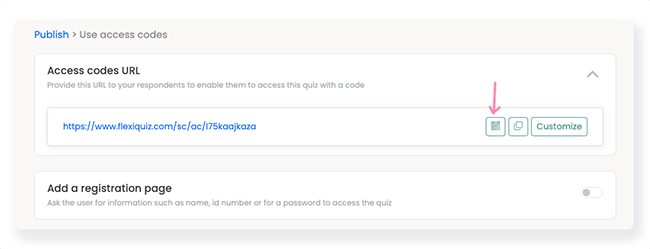
- From the Publish screen, click on the Access codes box.
- You can add a registration page at the start of your quiz by clicking the Add a registration page toggle.
- Now generate the access codes for your learners. You can either upload your own codes or have FlexiQuiz create a set of codes. Learn more about generating access codes.
- Then you need to share the access codes with your selected learners.
- To get the QR code for the login page, go to the Access codes URL and click on the QR code icon. The QR code will download as a JPEG file.
- Share the QR code with your learners.
Downloading a QR code with Respondent portals
The FlexiQuiz Respondent portals are a central place for learners to access all the activities you assign them. Learners sign in to the Respondent portal through the login screen. You can share the Respondent portal login screen via a QR code so learners can access it quickly and easily.
To download the QR code for the Respondent portal login screen:
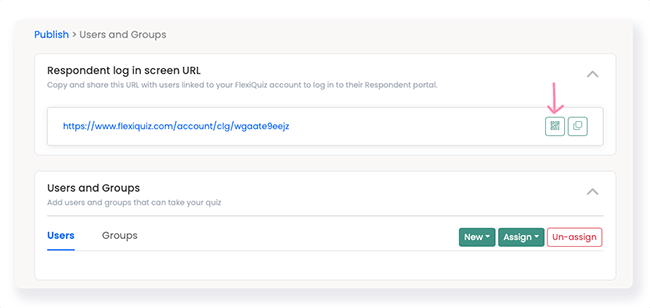
- From the Publish screen, click on Users and Groups.
- Assign the quiz to the Respondent portals. Learn more about assigning quizzes to Respondent portals.
- Then go to the Respondent login screen URL.
- Click the QR code icon to download it as a JPEG.
- Share the QR code with your users who have a Respondent portal linked to your FlexiQuiz account.
Frequently asked questions
Can I keep my quiz content secure if I share it with a QR code?
Yes, you can share your quiz via a QR code while keeping the content secure, depending on your needs. There are various options:
- Add a registration page with a password,
- Add access codes,
- Use Respondent portals.
Can I share a live quiz game using a QR code?
Yes, players can join your live quiz by scanning a QR code.
Learn more about sharing a live quiz with a QR code.
Relevant help guides
All ways you can share a classic quiz and learning materials
Back


