

Configuration options to customize how your quiz works
Now that you’ve added your questions or learning content, it’s time to configure your quiz settings to match your goals.
FlexiQuiz offers a wide range of configuration options, giving you control over how your quiz works, looks, and interacts with users. Whether you’re creating revision tests, fun interactive quizzes, assessments, or training programs, you can personalize the experience to suit your needs.
Keep reading for an overview of the main configuration options available.
How to access your configuration options
- Log in to your FlexiQuiz account and create a new quiz or edit an existing one.
- Next, add, manage, and format your questions and training content on the Create screen.
- Then select the Configure tab.
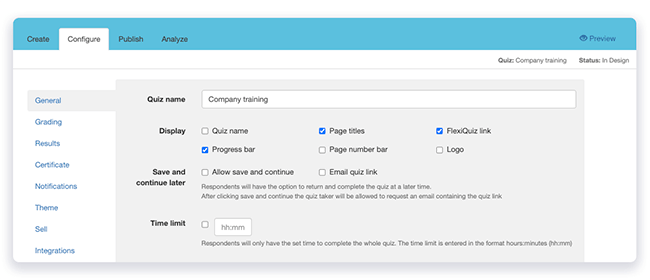
The General configuration options will appear with further settings split into sections on the left.
Configuration options by section
General
The General section includes a wide range of settings that let you control how your quiz is structured, displayed, shared, and completed.
Some of the key configuration options include:
Display: Choose whether to show the quiz name, page titles, navigation bar, and FlexiQuiz branding.
Time limits: Add a countdown timer for the whole quiz or set individual time limits for specific pages.
Proctoring: Set the number of times learners can switch tabs and force full-screen mode when learners take the test.
Question navigation and layout: Randomize questions, display progress bars, page numbers and question numbers, allow bookmarks, and choose if learners can go back to previous questions.
Quiz access and availability: Set quiz schedules, user access dates, and the maximum number of attempts allowed.
Grading
Grading determines the learner's level of understanding. It is also used for certifications, benchmarking, and building learning paths based on individual performance.
Our quiz maker software allows you to customize the grade names and values based on how many points learners get in the quiz. Learn more about setting custom grades.
In addition, you can create a grade-based learning path that automatically directs learners to their next activity based on their performance.
For example, if learners get a fail, they need to retake the test. However, if learners master the subject, they can move to the advanced training module.
Learn more about grade-based redirects.
Results
Quiz results are the scores, feedback, and analysis generated when the learner submits the test.
With FlexiQuiz, you can choose when to share the results and what you want to include. You can choose to share a results page after learners submit the quiz and to send email notifications. You can customize the emails with your text and the following dynamic information:
- Scores and percentages: Total points earned vs. available points.
- Pass/Fail status: Based on how you define a pass on the grading screen.
- Correct & incorrect answers: Include a PDF with all questions and responses to show what was right or wrong.
- Explanations & feedback: Provide reasoning behind answers.
- Time taken: Shows how quickly a learner takes to complete the whole quiz or a page.
Learn more about customizing the results screen.
Certificates – Essentials plan or above
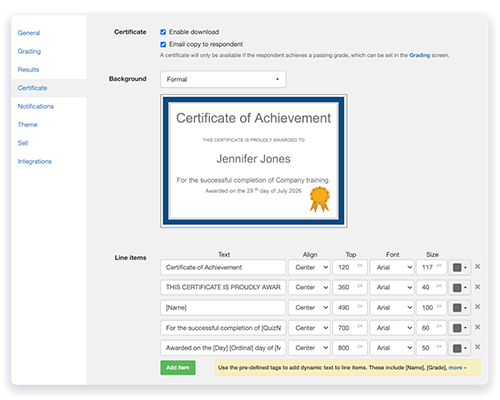
The Certificates section lets you create and share custom certificates with learners who pass your test.
Certificates are a great way to recognize achievement, reward progress, and encourage learners to keep going.
With FlexiQuiz, you can choose from a range of certificate templates or upload your own branded design. Certificates can include fixed text as well as dynamic information, such as the learner’s name, test date, score, expiry date, and more.
Learners can download their certificate directly from the results screen, or you can email them a copy automatically.
Learn more about creating and sharing custom certificates with your learners.
Notifications - Essentials plan or above
Emails are a great way to keep users informed and engaged during the quiz process.
Set email notifications to automatically message quiz takers, instructors, or administrators with reminders or results related to the quiz.
You can customize the text on the emails in any language and include dynamic text such as names, scores, and duration.The Notification screen includes the following emails:
Results to Admins or Trainers.
Results to quiz takers that can be customized based on a pass or fail grade.
Reminders to take the test.
Theme - Essentials plan or above
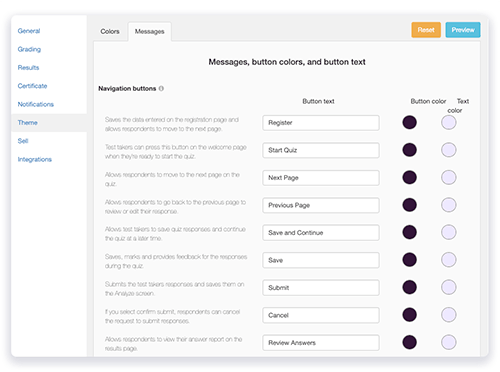
The Theme screen is your central hub for styling quizzes and learning materials.
Use the available theme options to create a professional design that reflects your brand, improves readability, and supports different learning needs.
With FlexiQuiz, you can:
- Change page and background colors or add background images.
- Customize the text on navigation buttons and system messages, making your content easier to understand in any language.
- Update fonts, text sizes, and alignment.
- Add custom CSS for greater design flexibility with an Enterprise or Enterprise+ plan.
Integrations - coming soon.
Send quiz results directly to your Google Drive or Google Sheets.
Sell – Premium plan or above
The Sell section lets you create a customizable landing page and connect it to Stripe, making it easy to start selling access to your quiz.
Learn more about selling your quizzes and generating revenue with FlexiQuiz.
Relevant help guides
Back


