


Adding background images to your quizzes
Customize the look and feel of your quizzes and learning materials by adding background images, icons, GIFs, or your company logo.
Background images can help reinforce your brand, make your content more visually engaging, and support the message or theme of your quiz.
FlexiQuiz allows you to add different images to individual pages and choose from a range of layout options to create the look that works best for your content.
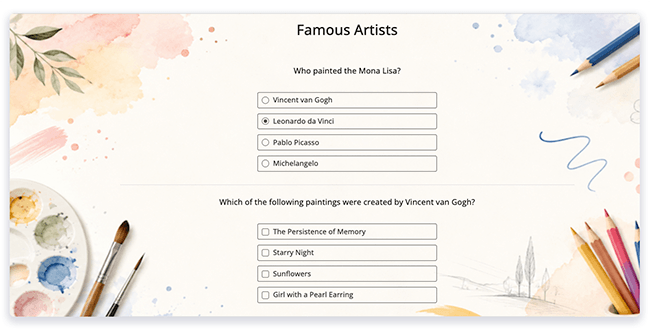
Where you can add a background image with FlexiQuiz
You can add a background image to the main page area where your quiz content appears, or to the outer border surrounding your quiz.
For a consistent look, use the same background image throughout your quiz, or choose different images for specific page types, including:
- Quiz pages: Includes question, text/media, and registration pages.
- Sell page: The landing page used to sell access to a single quiz.
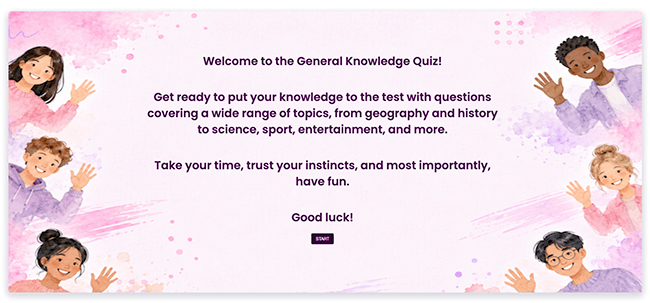
- Welcome page: Introduces your quiz and shares important information before learners begin.
- Thank you page: Share a message or additional information at the end of the quiz.
- Results page: Display information such as the learner's score, grade, and time taken.
Choosing a layout for your background image
You can choose where and how your background image appears.
- To start, add some quiz questions or learning materials.
- From the Create screen, click on the styling icon.
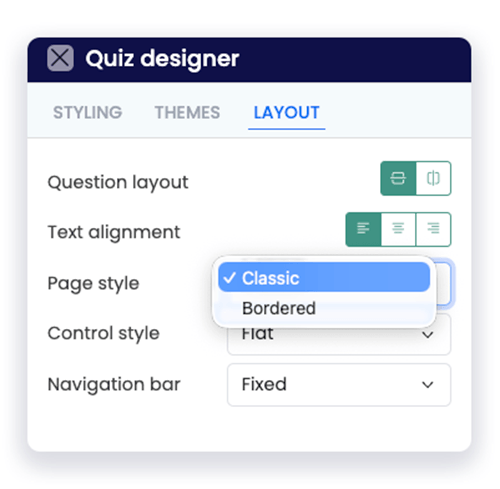
- Then click on the Layout tab.
- Go to the Page Style drop-down menu.
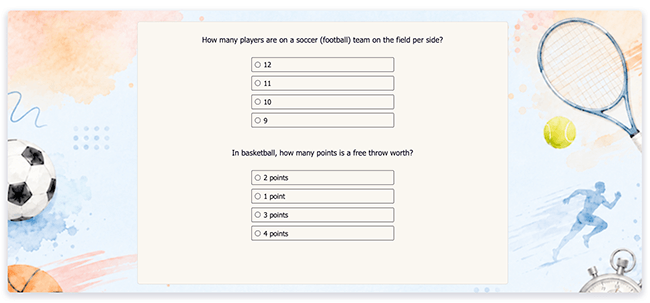
- Choose Bordered to add an image to the outer border or the main page area. This image shows an example of a bordered quiz.
- Choose Classic to add an image to cover the whole page. The classic option also allows you to pick different styles for showing the image. This image shows an example of a classic quiz layout using the fit style.
- Once you have chosen your page style, you’re ready to add your background images. Keep reading to learn how.
How to add the same background image to all pages
- Create your quiz and click on the styling icon.
- Click on the Create tab and choose a Bordered or Classic quiz style.
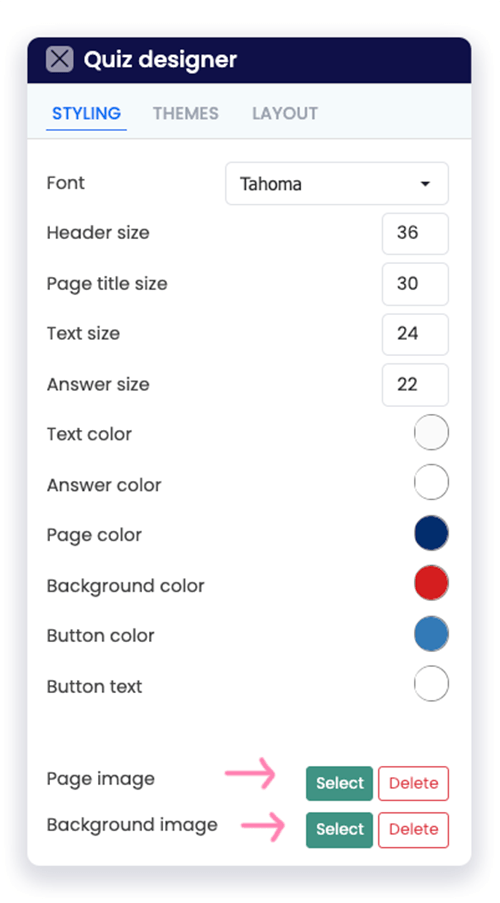
- Then click on the Styling tab.
- Scroll down to Page Image and Background Image to add your picture in the relevant place.
- To add the image to the Page where the text appears, click Page image.
- To add the image to the Background so it borders the text if you have a bordered layout, click Background image.
- Choose an image to upload and click Add.
- The image will now appear on your page.
- To check how the image looks to learners, click Preview.
The same image will now appear on all page types, including Welcome, Thank you, Registration, Quiz and Results.
How to use different images for various page types
- To start, make a quiz or edit an existing one.
- Next, go to the Configure tab and select Theme from the left-hand menu.
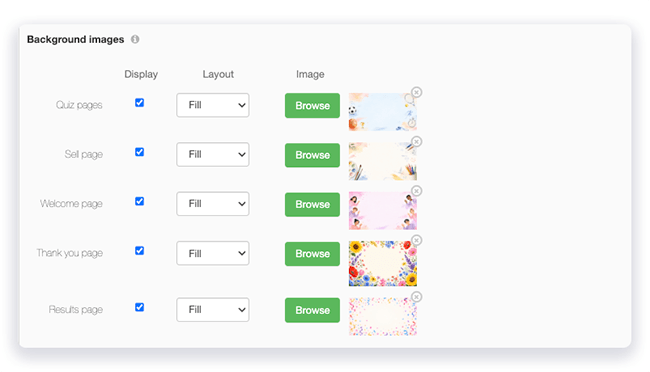
- Now scroll down the page to the Background images section.
- Choose the page where you want to add the background image and tick the box in the Display column.
- In the Layout column, click the drop-down menu and select how you want your image to appear:
- Tile: Repeats your image to match the height and width of your page, much like a mosaic. The number of times that the image repeats will depend on the size of the image and screen. For the example below, we used an image that is 200px wide.
- Fit: Adjusts your image to fit the size of the page with the aspect ratios fixed. The whole picture might not show depending on the screen size.
- Fill: Automatically adjusts your picture to fill the page, and the aspect ratios are not fixed. The whole image will show, but it could be slightly distorted.
- To upload your image, click the green Browse button and select the image you want to upload. The file must be:
- A JPEG or PNG file
- No more than 10MB. However, please note that large files might impact quiz performance if your users do not have a strong internet connection. To help ensure a good experience for your users, you can compress your file using tools such as TinyPNG.
- Once the file has uploaded, you will see a thumbnail of the image on your Theme screen. You can check how the image looks to test-takers by clicking Preview on the top right.
- You can also customize your fonts and navigation buttons to create enough contrast with the background image and keep your content clear and easy to read.
Top tips for using background images
When adding background images to your quizzes or learning materials, choose visuals that enhance your content without making it harder to read or distracting learners. Here are a few tips to help you get the best results:
Keep content clear and readable: Make sure your background image does not interfere with quiz questions, answers, or other text. Choose simple images with suitable contrast, or adjust your colors and layout to keep everything easy to read.
Use a consistent style: Choose images that work well together and complement the overall theme, topic, or design of your quiz.
Reinforce your brand: Add brand elements such as your logo, colors, or other recognizable imagery to create a consistent experience for learners.
Choose relevant images: Use visuals that relate to your subject matter or learning content. Relevant images can help set the scene and make your quiz more engaging.
Avoid distracting backgrounds: Try not to use images that are too busy or detailed. Your quiz content should always remain the main focus.
Check different screen sizes: Preview your quiz on desktop, tablet, and mobile devices to make sure your background images display well across different screen sizes.
Check image permissions: Only upload images that you own or have permission to use. If you are using third-party images, make sure you have the appropriate license and follow any attribution requirements.
Frequently asked questions
Can I save my background image as a Theme to use for other quizzes?
Add your image using the styling icon option so that it is the same image on all pages. Then you can save your image, colors, and fonts as a Theme.
Learn more about Theme templates.
Inspiration
Here are some examples of quizzes that use background images
Relevant help guides:
Summary of FlexiQuiz page types
How to change background colors
Blog: Ways to style your quiz
Back


