


Using a theme template to style your quiz
You can style your quiz by adding background images, changing colors and fonts, or updating the layout.
To quickly style your quiz, you can apply a theme from the FlexiQuiz gallery.
You can also design and manage your own custom themes for your quizzes, or share them as templates across your organization.
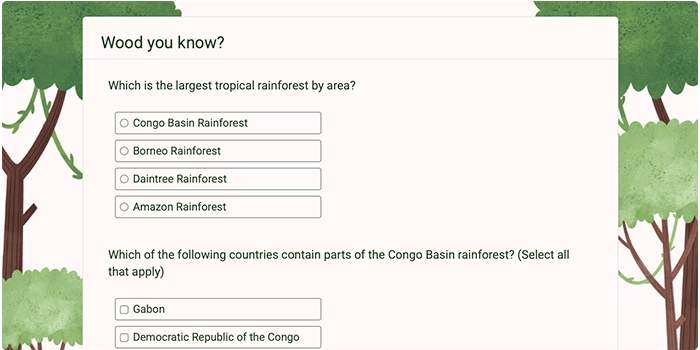
What does a theme include?
- A color palette that includes the main elements of a quiz: background, buttons, button text, questions and answers.
- A font.
- An optional background image.
- The layout, including text alignment, page and control style.
How to apply a FlexiQuiz color theme to your quiz
- To start, create your quiz.
- Then, from the create editor screen, click the styling icon on the right.
- Click on the Themes tab.
-
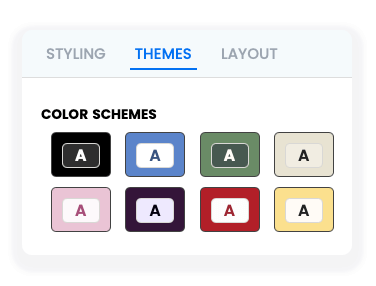
Scroll down the screen to choose a color scheme or a theme with a background image from the FlexiQuiz theme gallery.
- Click on your chosen color theme, and the quiz style will automatically update.
- You can adjust the theme by editing any of the styling or quiz layout options such as fonts, navigation buttons or layout.
- Click Preview in the top-right corner to see how your quiz looks to respondents.
How to apply a FlexiQuiz image theme to your quiz
- Start by creating a quiz or editing an existing one.
- From the create editor screen, click the styling icon on the right.
- Then, click on the Themes tab.
-
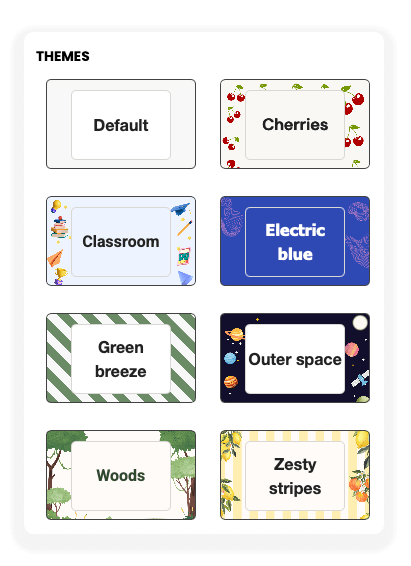
Scroll down the screen to choose a background image theme from the FlexiQuiz gallery.
- Click on your chosen theme, and the quiz style will automatically update.
- You can make changes to how the quiz looks by adjusting any of the styling or layout options. If you have a Premium plan or above, you can also add your logo and remove FlexiQuiz branding.
- Click Preview in the top-right corner to see how your quiz looks to test-takers.
How to create your own custom theme
- Create a new quiz or open an existing one.
- Go to the create editor and click on the styling icon.
-
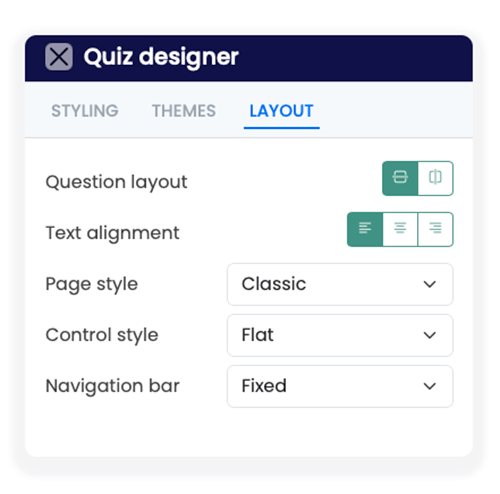
Click on the layout tab.
- Then choose the question layout. You can set the questions vertically or horizontally.
-
Choose the text alignment to the left, centre or right side of the page.
Top tip! If you want the text centred, we recommend changing the control style to ‘bordered’.
-
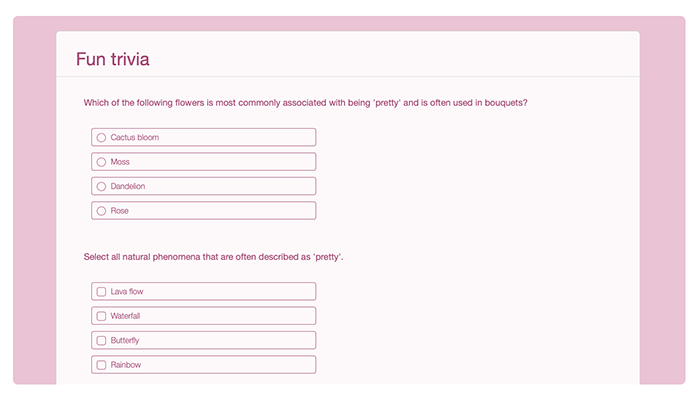
You can pick our classic page style or the new bordered style. The border style puts a box around the quiz, allowing you to set page and background colors.
The image below shows a quiz with a bordered page and control style.
- Then choose the control style to set how the answer options appear.
- Now choose how you want the navigation bar to appear. The navigation bar shows the navigation buttons and the optional progress bar. A fixed navigation bar means that the buttons will always appear at the bottom of the respondent's screen. An incline navigation bar means that the buttons will appear after the last question on the page.
-
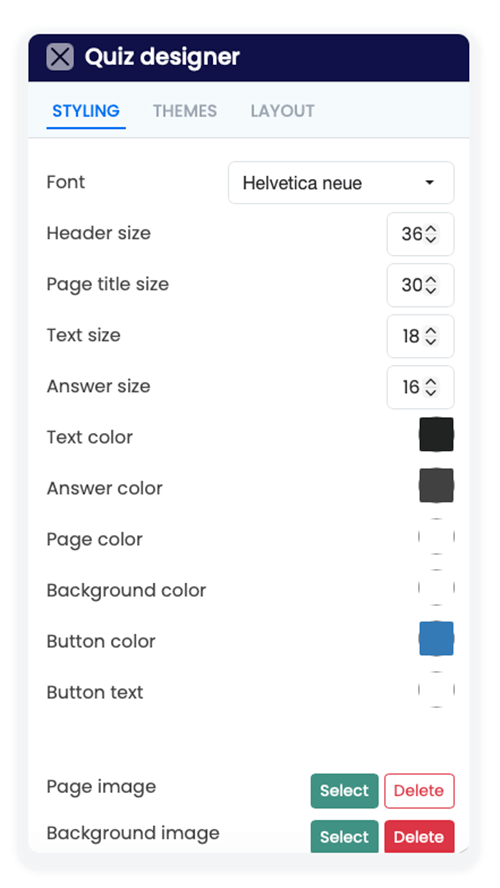
Click on the Styling tab to start updating your text. You can choose from hundreds of fonts, update the text size, and change the text color. Learn more about updating fonts.
- Then choose the page or background color, or you can add a background image. Learn more about updating colors on all pages.
- Now choose the color of the navigation buttons and color of the text on the buttons.
- You can also add an image to the page or the background. Learn more about adding background images.
How to save your theme
Once you have created a custom theme that you want to use on other quizzes or courses, you can save it to your personal or main account.
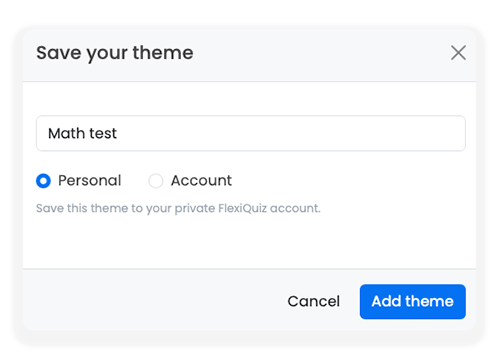
The personal account means that only you can view and use the theme.
The account option means that if you have any Admins or Trainers linked to your account, they can also access and use the theme.
- Click on the Themes tab.
-
Click Save current design as a theme. A window will appear that lets you save the theme to your personal or main account.
- Then click Add theme.
An outline of your theme will appear in the personal themes or account themes area.
Frequently asked questions
Are the FlexiQuiz templates color accessible?
All color and background templates provided by FlexiQuiz are color accessible. But if you edit the templates, they may not be accessible.
The color contrast guidelines for the WCAG 2.1 Level AA accessibility standards are the following:
- Text and/or images of text have a contrast ratio of at least 4.5:1, except:
- Large-scale text and images of large-scale text (18pt to 14pt bold), which should have a ratio of at least 3:1.
We check that the questions and answers have enough color contrast with the background.
You can use tools such as colour contrast checker to view your color choices.
How do I delete a template?
To delete a template:
- From the Create screen, click on the styling icon that is on the right side of the screen.
- Then go to Themes.
- Click on the x next to the Theme you want to delete.
If you delete a Theme template, it is no longer saved. It will not impact quizzes that already use the theme.
Relevant help guides
How to add your logo to a quiz
How to remove FlexiQuiz branding
How to customize the navigation buttons
Back


