

Publishing, Opening and Closing quizzes
FlexiQuiz lets you open and close a quiz at any time, so you decide when learners can view your content.
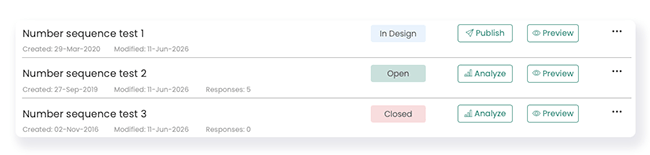
You can check the status of your classic quizzes on your main dashboard, the publish screen, and in the top right of all quizzes.
Summary of your quiz status options
In design: Students cannot view your quiz because it is still in progress.
Open: Students can view and take your test according to any rules you set, such as maximum quiz attempts, IP address restrictions, and registration page requirements.
Closed: Students cannot access or take your quiz. You can continue to update your quiz content. Respondents can see the quiz on their portal but can only access the results page.
How to publish, open, or close your quizzes
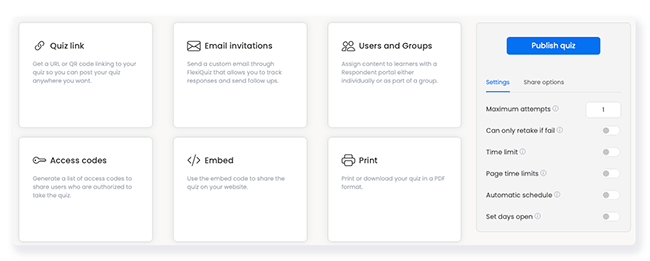
You can publish a quiz if you have an Admin or Trainer account with the relevant Publish quiz permission. Once you publish a quiz, it is open, meaning that anyone with access can view your content.
Publishing your quiz for learners to see your content immediately
- Create a new quiz or access an existing test with the status "In design".
- Next, go to the Publish tab.
- Click Publish quiz to open your test.
- A window will pop up to confirm that your quiz is successfully published. On the publish screen, the quiz status is Open. You can now choose how you want to share your quiz.
Closing a quiz
When you want to stop learners from viewing or taking your quiz, you can close it. If a quiz is closed no-one can view your content.
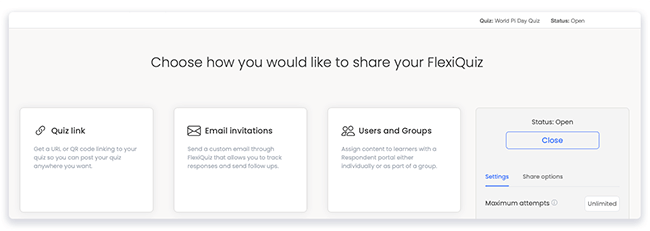
- Go to the Publish tab.
- Click Close. A window will pop up to confirm that the quiz is now closed.
- The quiz status will change to closed. If students try to access your quiz content, they will see a message that the quiz is not open.
Reopening a quiz
You can reopen a quiz at any time to allow learners to view your content.
- Go to the Publish tab.
- Click Reopen. A window will pop up to confirm that your quiz is now open.
The quiz status will change to open. Students can now access your quiz based on the rules you set.
How to automate opening and closing a quiz
You can set a quiz schedule so that the quiz will automatically open and close on the dates and times that you set. No manual intervention required.
Automating when a quiz opens and closes saves time and ensures your assessment is available exactly when you need it.
Learners can only access the quiz during the scheduled availability window, helping you maintain control over when the assessment can be taken.
- To start, make your quiz.
- Next, go to the Configure tab and select General from the left-hand menu.
- Now scroll down the page to Schedule and tick the box.
- Enter the date and time you want the quiz to open in the From boxes.
- Enter the date and time you want the quiz to close in the To boxes.
- You can now share your quiz. Learners can only view your quiz when it opens at the scheduled time shown in the From boxes.
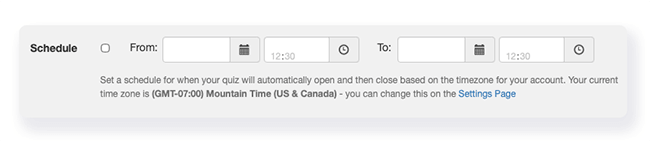
Learn more about automatically opening and closing your quiz.
Other ways to control when students access your quiz
FlexiQuiz offers various settings to control when students can view your quiz content.
User schedules: Set the number of days a user can access your quiz from the time the test is assigned to them.
Maximum quiz attempts: Limit the number of times students can access and take your quiz. You can also restrict students who pass from viewing the content again.
Frequently asked questions
Why can I not open or close the quiz on the Publish screen?
If you cannot open or close the quiz, please check that you have not ticked the Schedule box. Go to the Configure screen and scroll down to Schedule to check the status.
If you have a free plan, you will not be able to open your quizzes when they have a paid feature. You will need to remove the paid features or upgrade to a suitable plan.
Why can't I see the Publish tab?
If you do not see a Publish tab, as shown in the image below, you are creating a live quiz. Players can view a live quiz when the Admin hosts the game.

Click Play Live Quiz to start sharing your quiz with players.
Relevant help guides:
Adding a registration page with a passcode
Back


