

Sharing a quiz with access codes
FlexiQuiz makes it easy to share your quiz securely using unique access codes.
Learners can access your quiz through a dedicated access code login page by entering their assigned code. You can also control when the quiz is available and how many times each access code can be used.
How to share a quiz with access codes
- To start, create a new quiz or edit an existing one.
- Then, select the Publish tab to choose how you want to share your quiz with learners.
- Click on the Access codes box to open the set-up screen.
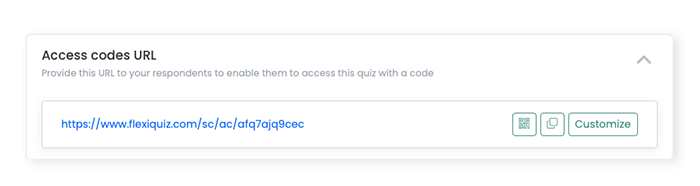
- The access code landing page URL is at the top of the page. You can customize the URL to include your organization's name or quiz details.
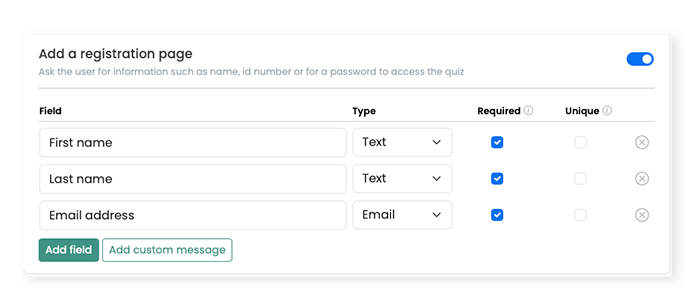
- Scroll down to Add a registration page and select the toggle to include a registration page at the start of your test. Learn more about configuring the registration page.
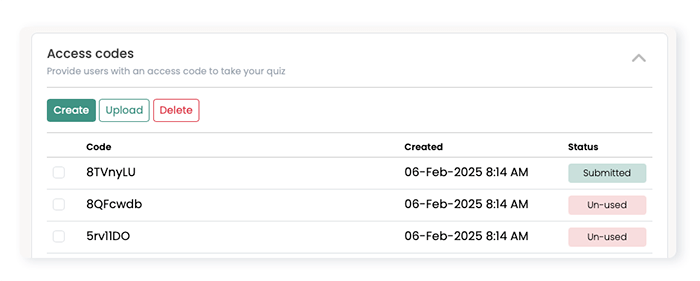
- Scroll down to the Access codes box. You can request that the FlexiQuiz system automatically generate random codes or add your own.
- To generate random codes, click Create. A window appears to check how many codes you want to generate. Enter the number of codes you require in the Total access codes box. Then, click Create codes. The codes will instantly appear on your Access codes list.
- To add your own codes, click Upload. A window appears for you to enter your codes. Then click Upload. The codes will appear on your Access code list.
- Share the Access code URL and an access code with each student.
Learners can use the access code only within the maximum allowed number of quiz attempts and only when it's open.
Frequently asked questions
Can I track when someone uses an access code and view their results?
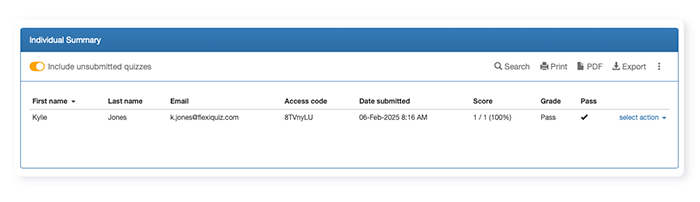
Yes. You can track when an access code is used from your Analyze screen.
As soon as someone enters an access code on the login page and starts the quiz, their attempt will appear on the Analyze screen. This allows you to see whether they have submitted the quiz or left before completing it.
To view the access code used:
- Go to the Analyze screen and select the Individual Summary report.
- In the results table, click the three dots.
- Select Configure columns from the drop-down menu.
- Tick the box for Access codes and click Save.
- The Access codes column will now appear in your Individual Summary report.
Can I download a copy of the access codes issued?
It is not possible to download a copy of the access codes before they are used.
You can create the access codes and upload them to FlexiQuiz. This allows you to keep a copy of the access codes that you upload.
What is the difference between email invitations and access codes?
Both options allow you to secure access to your quiz, select who views it, set the maximum quiz attempts, and track responses.
With Email invitations, each user is sent a unique URL to view their quiz content. Learners can only access the quiz using the unique URL they receive by email. You can track progress with the learner's email address.
Access codes also allow you to control access to the quiz. However, you do not need the user's email address. You need to give learners a dedicated landing page for the quiz and a unique access code. Learners can use the same access code across multiple tests, but each landing page will be different.
What is the difference between access codes and a password?
Access codes are unique to each learner, while a password is shared by everyone accessing the quiz.
Each access code is different and can only be used for the number of quiz attempts you allow. For example, if you set the maximum number of attempts to five, the learner can use their access code to take the quiz up to five times. Learners enter their code on your access code login page.
Passwords, which can contain a combination of letters and numbers, are the same for all learners. The password is entered on the quiz registration page and can be used an unlimited number of times.
To limit the number of quiz attempts when using a password, you will also need to make one of the registration fields unique.
Can I delete an access code?
Yes, you can stop people from accessing your quiz with an access code.
- Go to the Publish screen and select Access codes.
- Now, scroll down to the list of codes.
- Tick the box next to each code you want to delete.
- Click delete.
What is the experience for test-takers?
Test-takers can only enter the access code on the landing page linked to a specific quiz.
Learners can access the landing page using a QR code or the dedicated URL.
The landing page includes a box to enter their access code.
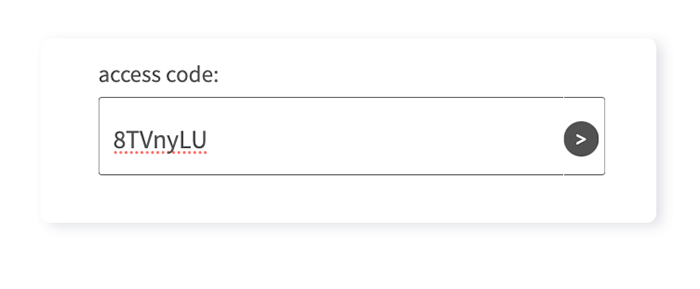
Once test-takers enter the code, the registration, welcome, or first quiz page opens.
Relevant help guides:
How to set a maximum number of allowed attempts
How to schedule when a quiz opens and closes
Back


