

Deleting Respondent accounts and user data
As the Main Admin, you can delete your own account as well as the accounts of users associated with your FlexiQuiz account. You can also grant permissions that allow Additional Admins and Trainers to manage and delete user accounts and related data, helping your organization comply with data protection and privacy requirements.
FlexiQuiz users, including Main Admins, Respondents, Trainers, Additional Trainers, Additional Admins, and test-takers, may have rights regarding their personal data under applicable privacy laws, such as the GDPR.
Considerations before deleting a user account
Before deleting a user account, please consider the following:
- If you need to retain any information, download and save the relevant data from the Reports and Analyze sections before proceeding. Learn more about exporting quiz data.
- Deleting a user account is permanent and cannot be undone. In accordance with privacy regulations such as the General Data Protection Regulation (GDPR), we may be required to permanently delete personal data when requested.
- All data associated with the user, including quiz results, progress, and activity records, will be permanently removed.
- The username will no longer be associated with your FlexiQuiz account.
- The user will be removed from any Groups they belong to.
- If the user is a Trainer or Additional Admin, any quizzes they have created will be retained and automatically reassigned to the Main Admin.
How to delete a user profile
You can delete a user profile if you are the primary account Admin or have an additional Admin/Trainer account with permission to manage users.
- To delete a user, log in to your FlexiQuiz account and select Users from the top menu. Your user management screen will appear.
- From here, you can scroll up and down the page to find the user you want to delete.
- Hover over the user until the trash icon appears.
- Click on the trash icon to remove the user.
- A window will pop up to ask you to confirm that you want to delete the user. If you are ready to permanently delete them, press Delete.
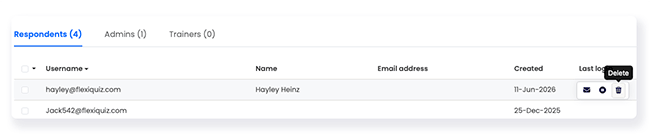
The user profile is removed from your user management screen, and all associated data, such as quiz results, is deleted. The user is unable to log in.
If the user is an additional Admin or Trainer, any quizzes they have created will be retained and linked to the main Admin account.
How to delete multiple users
You can delete multiple users at once.
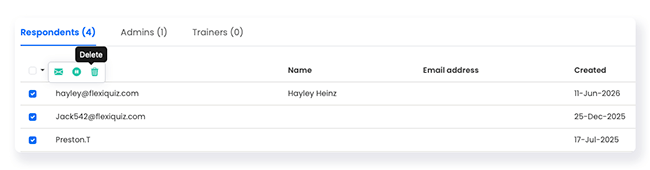
- From your main dashboard, select Users from the top menu. Your user dashboard shows all users associated with your FlexiQuiz account, split into Respondents, Trainers, and Admins.
- Tick the box next to each user that you want to delete.
- Go to the top of the user table and click on the trash icon.
- A message will pop up to ask you to confirm that you want to delete the selected users. Once you delete a user, the data cannot be recovered.
- Click Delete to permanently delete the user and all of their data.
How to delete respondent’s quiz results
You can delete quiz results for a test-taker if you are the main Admin or have an additional Admin/ Trainer account with delete and delete quiz/results permissions.
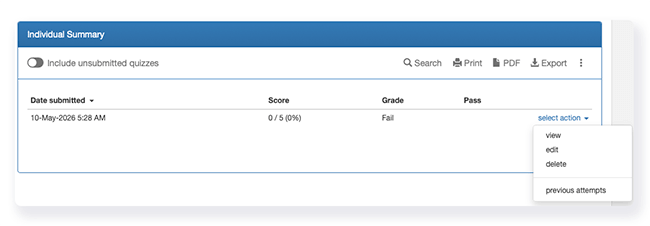
- From your main dashboard, find the relevant quiz and click Analyze. The Analyze dashboard will open.
- Scroll down the dashboard to find the relevant user.
- Click Select Action.
- Click delete. A pop-up will appear asking you to confirm that you want to delete the quiz data. Once you delete the data, it cannot be recovered.
- Click delete to permanently remove the user’s results from the quiz.
Frequently asked questions
What is the difference between suspending an account and deleting an account?
If you suspend a user account, all of their data is saved, but the user cannot access their portal.
You can unsuspend the account at any time and allow the user to access their portal. Learn more about suspending and unsuspending user accounts.
If you delete a user account, all of the data is deleted from your FlexiQuiz account. The data cannot be recovered.
Relevant help guides
How to manage the main Admin account
Back


