


Full-screen mode
Full-screen mode helps keep your online exams secure by requiring learners to take the test using their entire screen. This reduces test takers' ability to access other apps, browser controls, and distractions during the assessment.
While full-screen mode is active, learners cannot freely switch to another browser tab or window without leaving the exam environment.
FlexiQuiz allows you to add additional security; you can combine full-screen mode with tab-switch detection, which automatically submits the test if learners attempt to switch tabs more times than allowed.
How to set the full-screen mode
- Create an exam.
- Select the Configure tab.
- Click General on the left-hand menu.
- Scroll down the page to Full screen mode and tick the box.
- For added security, you can prevent learners from switching tabs and add time limits.
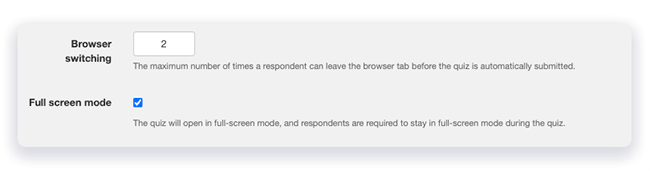
Learners will now need to take the test in full-screen mode.
If they leave full-screen mode, they will not be able to continue the test. A message will appear telling them that they must return to full-screen mode to continue taking their exam.
To customize the messages in any language.
- From the Configure screen, select Theme from the left-hand menu.
- Click on the Messages tab.
- Scroll down to the Progress messages section.
- Select the Full screen loading message and Full screen warning message. Delete the existing text and add your own in any language.
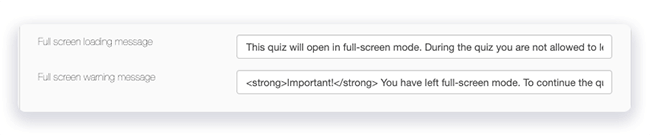
How full-screen mode works for test-takers
Respondents can view registration, selling, and welcome pages as normal.
When a test-taker is ready to begin the exam and opens the first question or text/media item, a message will appear saying they must take the exam in full-screen mode.
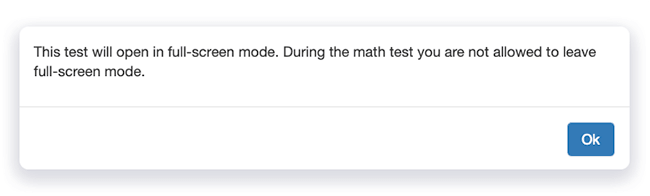
The test-taker cannot start the exam until full-screen mode is enabled.
If they press Esc or attempt to leave full-screen mode during the exam, a warning message will appear. They cannot continue until they return to full-screen mode.
Try it yourself: Take this FlexiQuiz test to see how full-screen mode works for test-takers. Math test in full-screen mode.
Frequently asked questions
If learners attempt to close full-screen mode, will the countdown timer continue?
Yes. If a learner presses Esc or attempts to leave full-screen mode, any active page or exam timers will continue to count down.
This means learners may lose valuable exam time if they try to leave the secure full-screen environment.
Relevant help guides
Blog: Ways to prevent cheating
Back


