

Show scores after each question
By default, learners receive their score upon completing a quiz and can view a report showing which questions they answered correctly or incorrectly.
However, FlexiQuiz also allows you to provide instant feedback by showing whether each answer is correct or incorrect as learners progress through the quiz.
Showing the results and feedback after every question helps learners track their performance in real time. Your learners can immediately tell whether they got the answer right or wrong, and why. This can be useful for training, revision, and mock tests.
In this guide, we'll show you how to enable question-by-question scoring and customize the feedback displayed to learners after each response.
How to show learners if they got the question right or wrong during the quiz
The FlexiQuiz system will automatically score the questions at the end of each page. The page can have one question or multiple questions.
- To start, create a quiz or edit an existing one.
- Select how many questions you want on each page.
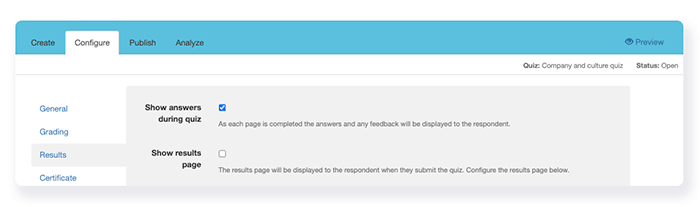
- Then go to the Configure screen and select Results from the left-hand menu.
- Tick the box Show answers during quiz.
- Then publish and share your quiz.
The test-taker experience
- Learners answer the questions on the page.
- When they have finished, they click Save at the bottom of the page. FlexiQuiz automatically marks their responses and displays which answers were correct and incorrect.
- Learners can review their answers and any feedback provided. When they are ready, they can click Next to continue to the next page or Submit to complete the quiz.
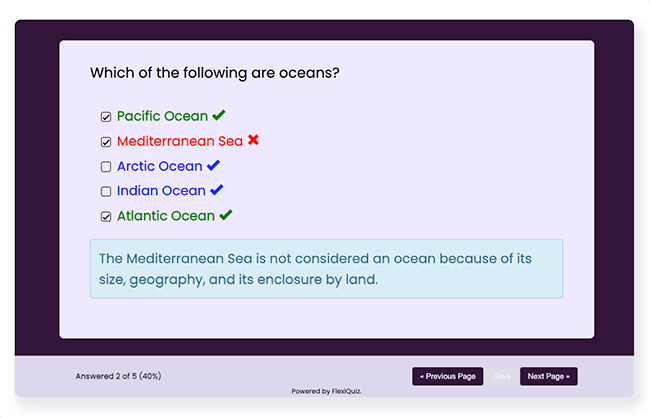
Learners will see the following indicators after answering a question:
- Green tick – displayed next to a correct answer selected by the learner.
- Red cross – displayed next to an incorrect answer selected by the learner.
- Blue tick – displayed next to the correct answer when the learner selects an incorrect answer or does not provide an answer.
- Feedback message – If feedback is enabled, the learner will see the relevant feedback displayed in a message box below the question.
Try our geography quiz with scoring at the end of each page.
Advanced options
Share custom feedback: You can share feedback based on whether learners give the right or wrong answer. Learn more about adding feedback to your quiz.
Customize navigation buttons: Change the button text to help learners easily progress through the quiz. Learn more about customizing navigation buttons.
Frequently asked questions
Can learners go back and change their response after they have seen the answers?
No, once learners click Save, they cannot amend their response. If you have selected Allow previous page navigation, students can go back to view the question, their response, and any feedback, but they cannot change their answer.
If you allow multiple attempts, students can restart the quiz and respond again.
What happens if I have a time limit per page?
If you add a time limit and learners respond within the allowed time, they will be able to see whether they got the answer correct.
If the time limit expires, learners will automatically go to the next page. They will not see the correct answer or any scoring.
Learn how to add a time limit to your quiz.
Can I also show a results page at the end of the quiz?
Yes, you can display a custom results page at the end of the quiz that shows the total points the learner earns.
Learn how to customize a results page on your quiz.
Relevant help guides:
How to email scores and answers at the end of a quiz
How to award points on your quiz
Back


