


Customizing the navigation buttons on your quizzes
Navigation buttons help learners move through your quiz or course.
With FlexiQuiz you can customize the color and text on the buttons.
quiz results page with color navigation buttons

How to change the text
- Start by creating a quiz. You need to add at least one question to the quiz.
- Go to the Configure screen and select Theme from the left-hand menu.
- Now click on the Messages tab.
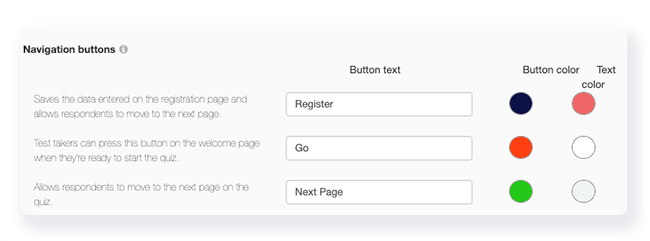
- The screen lists all navigation buttons and provides a brief description of their actions.
- Go to the button you want to edit.
- Delete the existing text and add your new text. The system will automatically save your changes.
How to apply one color to all navigation buttons
- From the Create screen, click on the Styling icon.
- Then select the Styling tab.
-
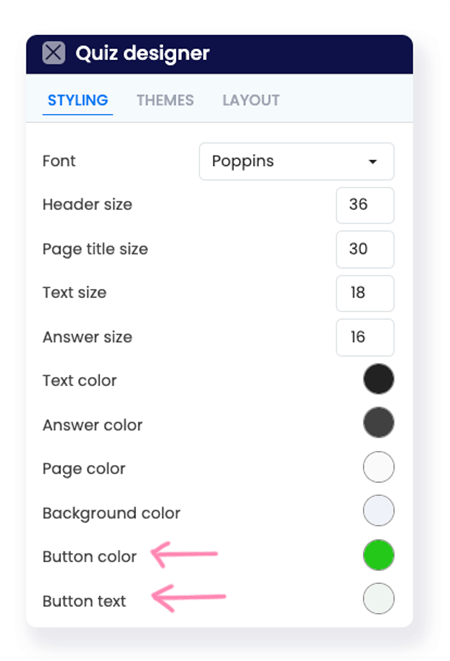
Scroll down the options to Button color and Button text.
- To change the background color of the navigation button, click on the Button color. You can choose from the FlexiQuiz color palette or add your own HEX code.
- To change the color of the text on the click, Button text. Then choose the color for your text.
- Click the X in the top-left corner of the menu to close the quiz designer menu.
- Click Preview in the top-right corner to see how the buttons look on your quiz.
How to set different colors for each navigation button
- Go to the Configure screen and select Theme from the left-hand menu.
- Then click on the Messages tab to view all the navigation buttons you can style.
- You can go to each button and change the text that appears on it. For example, you can change Next Page to Next or Go.
- Click on the first circle to change the background color of the button.
- Click on the second circle to change the text color on the button.
- To view how the button looks on your quiz, click on the Preview button on the top right of the screen and go to the page where the button will appear.
Frequently asked questions?
How can I make sure learners can easily read the text on the button?
It is important to have a strong contrast between the color of the button and the text on the button.
It is good to have dark text on a light background or vice versa.
There are some tools online to help you check that you have good color contrast, such as Colour Contrast Checker and webaim
Can I change the font on the navigation button?
It is not possible to change the font on the buttons. But you can change the font everywhere else in the quiz.
Can I save the styling for my buttons for making other quizzes or courses?
Yes, you can save your navigation button colors as part of a theme.
Explore how to create and save a theme to use for additional quizzes.
Relevant help guides
How to change the background colors on your quiz
How to add background images to your quiz
Back


