


Help / Add images to live quiz game
Adding images and GIFs to a live quiz game
Adding visual media to your FlexiQuiz live quiz games is a great way to engage your audience.
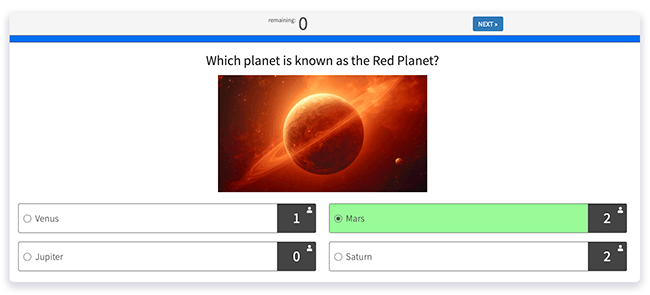
How to add your images or GIFs to a quiz question
- To start, create a new live quiz or edit an existing one.
- From the
Create screen, click Add question. - Then pick your question type. You can add images to any question type.
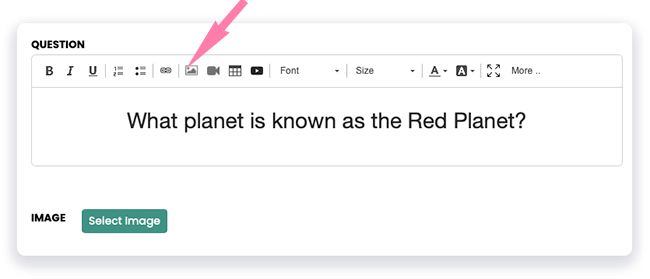
- In the Question box, enter your question or instructions.
- Then click Select Image.
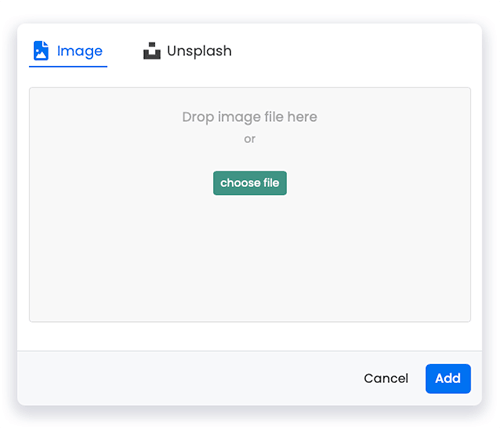
- A pop-up will appear allowing you to upload your image. Upload your image.
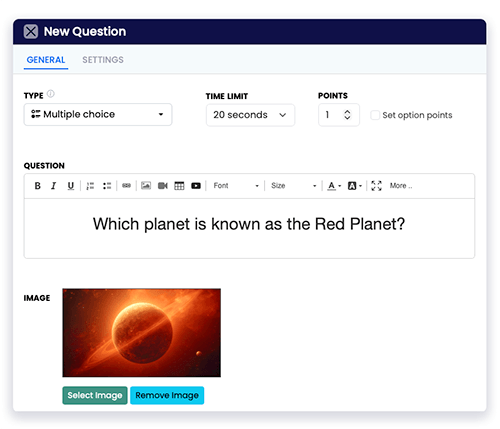
- Once the image or GIF uploads, click Add to add the media to your quiz question. You image will appear next to the image upload button.
- Then finish formatting and editing your question.
- To add the question to your quiz, click Save. The image is auto-sized to look great in your quiz on any device, including mobiles, laptops and tablets.
- To check how your live quiz looks for players, you can demo the quiz.
A quick reminder: When uploading your own images or media to FlexiQuiz, please ensure you have permission to use them and that they comply with our acceptable use guidelines. Avoid uploading copyrighted, unlicensed, or inappropriate content, as it may need to be removed and could affect your account.
How to add an Unsplash image to a question
Unsplash shares beautiful images taken by talented creatives from across the world.
- From the Create screen, click Add question.
- Then choose your question type and add your text to the Question box.
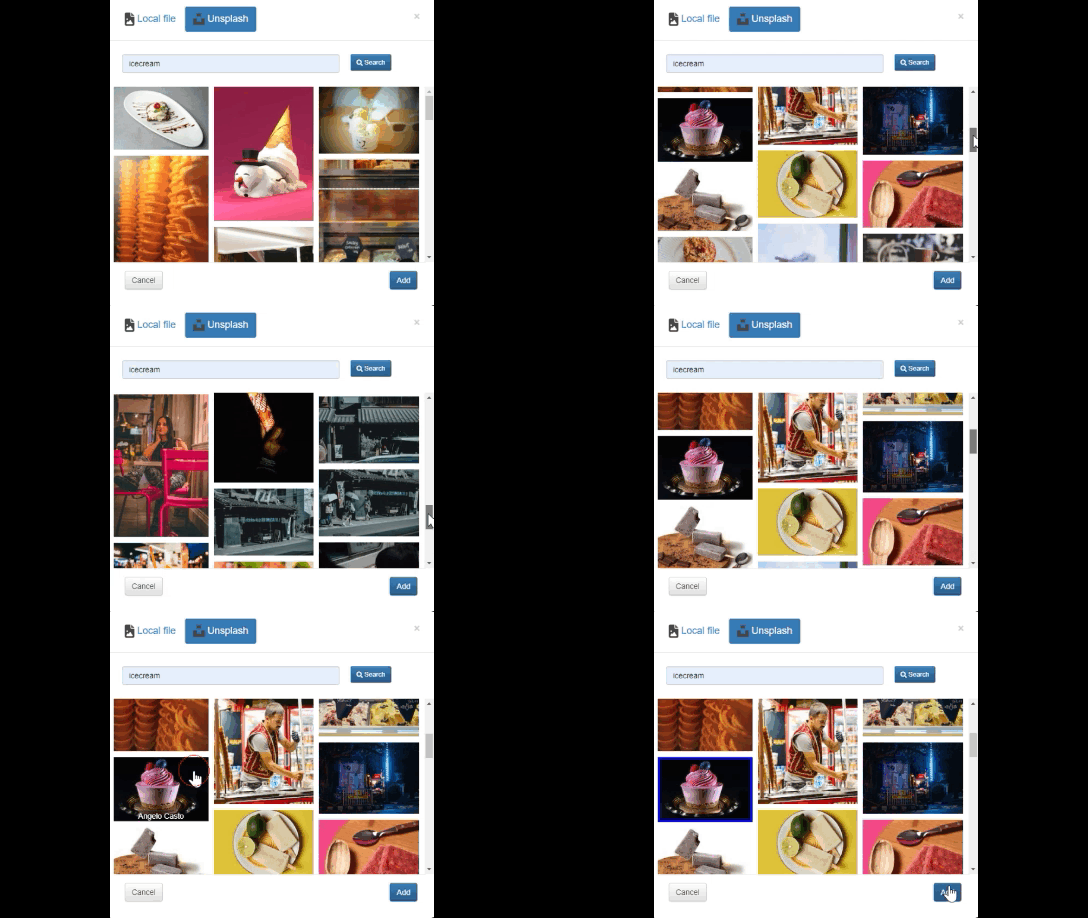
- To add your image, click Select Image. A pop-up appears, allowing you to find and add your image.
- Select the Unsplash tab. You can search for an image by adding a keyword in the search box and scrolling up and down the page to find one.
- Click your chosen image, then click the blue Add button to add it to your quiz. A copy of the image will appear on your question editor.
- Click Save to add the question to your live quiz game.
Removing images
You can change or remove images at any time:
- Go to the question editor and find your image.
- Click Remove Image. The image will no longer appear in your question editor.
- Click Save to update your question.
How to add images to answer options
You can add images as part of an answer option using our Picture choice question type. Players can pick one image from a selection of options.
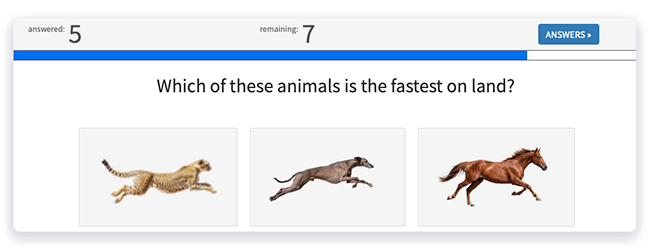
To add a Picture choice question to your quiz:
- From the Create screen, click Add question. Your question editor will appear.
- Under Type, click on the drop-down menu and choose Picture choice.
- Now enter your question or statement in the Question box.
- Under Options, click Choose picture and upload your image.
- You can also enter some text that will appear below the image in the box next to the image.
- Now go to Display size and choose what size you want the image to appear on the player's screen.
- Click Save to add the question to your quiz.
Frequently asked questions
When uploading an image, what are the file specifications?
File format: JPEG, PNG, static and animated GIF (FlexiQuiz supports PNG files with transparent backgrounds).
File size: 1 MB maximum and 2000 pixels by 2000 pixels.
Relevant help guides
How to add images to a classic quiz
Back


