

We’ve made creating quizzes a whole lot easier
We have updated the create screen with a cleaner layout, simpler controls, and more styling options.
Whether you’re building your first quiz or fine-tuning your tenth learning activity, the new experience makes it faster to create and style quizzes or courses with FlexiQuiz.
Keep reading to explore the latest updates from FlexiQuiz and start designing beautiful quizzes that reflect your brand. At the end of this article, we have included some examples of quizzes you can make with the new styling options from FlexiQuiz.
More innovative, easier question creation
We’ve introduced new, more flexible ways to add questions and pages when building a quiz or course. So creating beautiful content feels faster and more intuitive.
You now have the option to use AI to generate your quiz questions. Alternatively, you can make a quiz from scratch with your own questions.
When you start a new quiz from scratch, the elements menu appears right away - making it easier to choose the first question or page you want to add. And if you change your mind later, no problem, you can switch elements at any point as you continue building.
From the create screen, there are two simple ways to add new questions or pages:
- Click Add element + on the left-hand side to open the full list of questions and page types. You can drag and drop an element into the exact spot you want, or click it to add it to the bottom of the page.
- Or, click +New question on the page where you want to add your question.
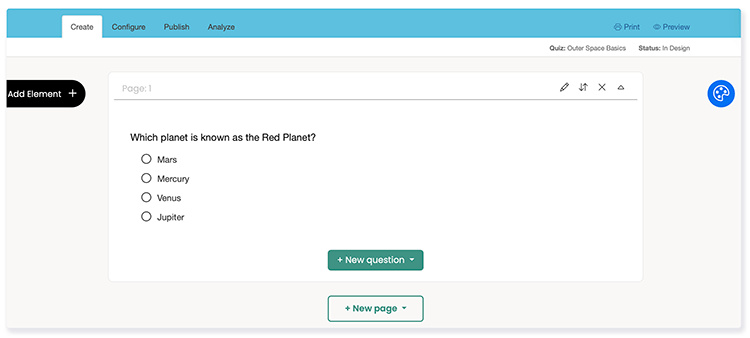
Once added, enter your question and answer options in the New Question editor. Then click Save to add it to your quiz.
Style your quiz straight from your create screen
You can now design how your quiz looks on your create screen. Plus, your changes are instantly updated on the screen, giving you a better idea of how the quiz will look for test takers.
Click the styling icon on the right-hand side to open your list of options.
The quiz designer is organized into 3 parts:
Styling: Choose fonts, colors and any background images that will apply to your whole quiz. If you want to customize different parts of your quiz, you can continue to customize your quiz on the Themes screen.
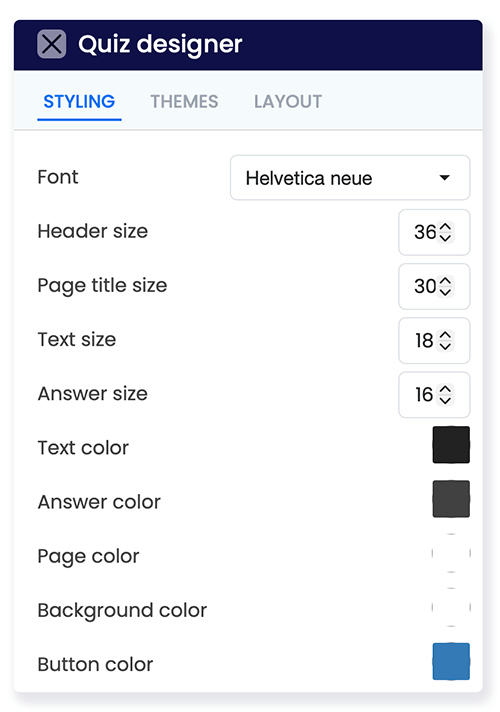
Themes: Pick a style template from the FlexiQuiz library. Or, save your own templates in your personal and account-level library.
Layout: Choose between our classic style or try our new bordered options.
Introducing the FlexiQuiz themes library
The FlexiQuiz themes library makes it quick and easy to style your quizzes.
Choose a theme to instantly update the colours, fonts, and background images on your quiz. We have designed each to give you a professional starting point that you can then customise with your own branding — including fonts, images, and logos.
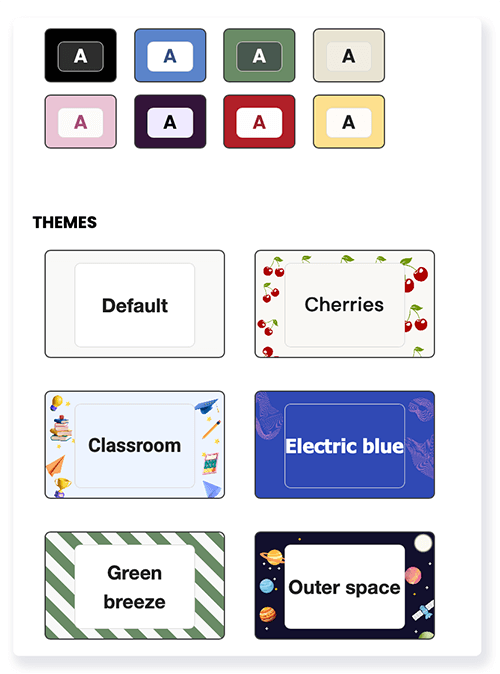
All FlexiQuiz themes are checked for colour accessibility, ensuring your quizzes are clear, readable, and easy for test takers to complete.
Explore the FlexiQuiz theme library and create quizzes that look as good as they perform. To access the library, go to the Create screen, click on the styling icon and choose the Themes tab.
Learn more about themes templates to quickly style your quiz.
Design, save, and reuse your own themes
Build your own style library with custom themes that reflect your organisation or the subjects of your learning materials.
Themes can include colors, fonts, quiz layout and background images.
You can save the theme to your personal FlexiQuiz account so that only you can access it.
If you are part of a FlexiQuiz Premium, Enterprise, or Enterprise+ subscription, you can save the theme at the account level so that other Admins or Trainers linked to your account can use your theme template.
New layout options
In addition to the original FlexiQuiz layout options, we have added some more options to help you style your quiz.
Bordered: Add a border for the page. The border allows you to display different colours or images in the text section and the new background area.
Here are some examples of ways you can style your quizzes with a border.
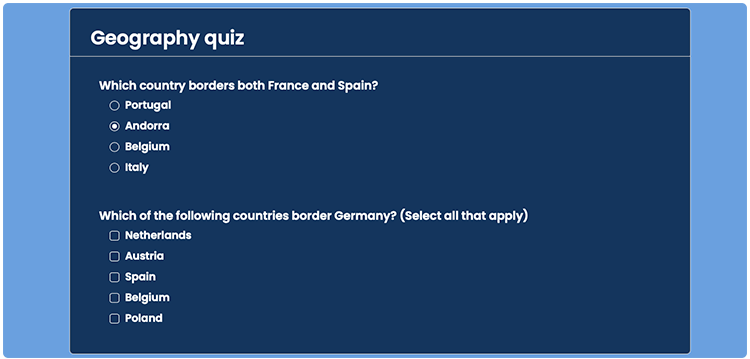
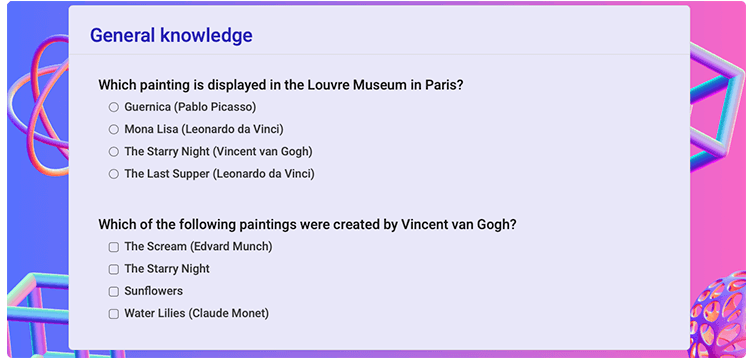
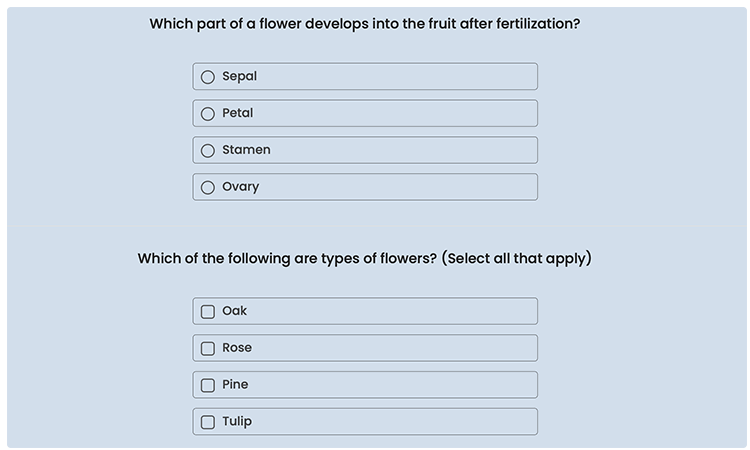
Borders - control style: Put your answer options in a box for a better user experience. The boxes can make it easier for test takers to view the answer options and they can click anywhere in the box to respond.
Here is an example of a quiz with bordered answer options.
Style your quiz navigation buttons with any color
You can customize the colour of your quiz navigation buttons to match your brand or theme.
Change the button colours to make actions like Next, Back, and Submit stand out clearly, improve usability, or blend seamlessly with your quiz design.
With our new flexible colour options, you can easily create a consistent, polished look that guides learners smoothly through your quiz.

A choice of hundreds of fonts to make your quiz
You now have access to hundreds of fonts to style your quizzes exactly the way you want.
With FlexiQuiz, you can choose from a wide range of typefaces to match your brand, improve readability, or set the tone of your quiz — whether that’s professional, playful, or somewhere in between.
On the create screen, you can choose the perfect font to match your entire quiz. Alternatively, you can customize the font for various parts of your quiz on the Theme screen.
Learn more about updating the fonts on your quiz.
Multiple choice questions
We are updating the names for our multiple-choice questions.
Single choice (radio button) is now Multiple choice. Respondents may select one option from a list.
Multiple choice is now Checkboxes. Respondents may pick 2 or more options from a list.
Ready to start making great-looking quizzes that match your brand? Click here to start making quizzes or courses with FlexiQuiz >>
Happy quizzing!
Back


